


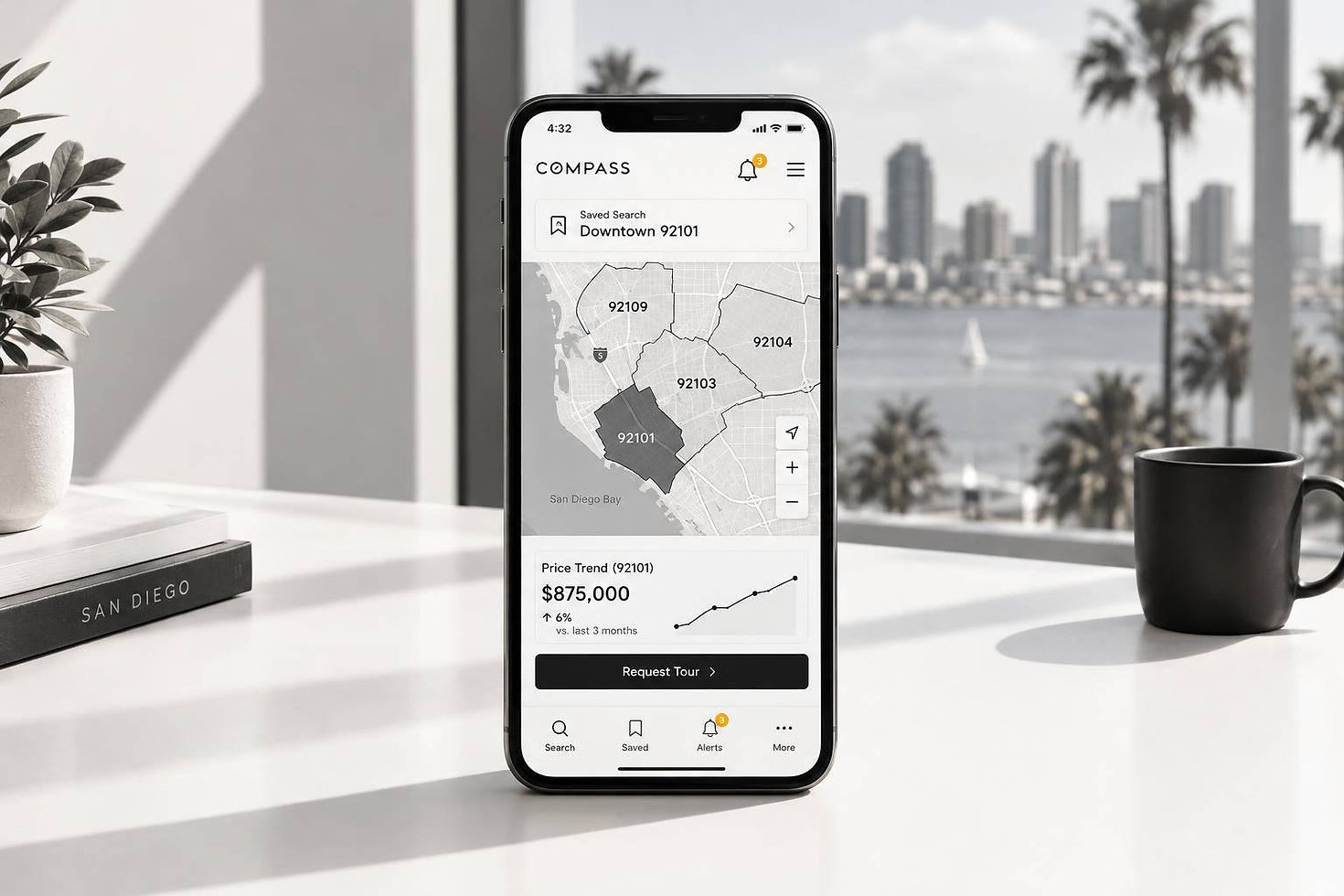
Compass App Features for San Diego Buyers

I use 7 Compass app tools to find homes, compare options, and plan showings. Start with your budget and must-haves, then save separate searches for 92130, 92122, and 92071.
Here’s how I’d use each tool:
Agent chat: Ask about pricing, disclosures, and next steps.
Saved searches: Keep each ZIP code’s listings organized with your price and home filters.
Map search: Check locations, then verify commute routes, park access, and school zones.
New-listing alerts: Choose Instant, Daily, or Weekly updates for each search.
Tour requests: Send two or three time options and wait for confirmation.
Favorites and visit notes: Compare homes with co-buyers or your agent, and estimate monthly costs.
Price tracking: Review price drops and status changes before deciding what to do next.
My rule: <u>a tour request is not a confirmed showing</u>. I’d use the app as a starting point and ask the Richard Elias Team to verify availability, access, and listing details before I travel.
1. Agent Chat for Property Questions
Ask About Pricing and Disclosures
Use Compass chat to ask about pricing, request California disclosures, and check what comes next. The Richard Elias Team can help you review pricing and navigate negotiations.
Keep the conversation in the same chat thread when asking about the home. For listings in 92130, 92122, and 92071, you can ask about the floor plan, neighborhood details, or showing times.[1]
Confirm Tours and Next Steps
A chat request does not mean your showing is booked.[1]
sbb-itb-7ed574e
How To Use Compass Search & Collections Tool
2. Saved Searches by ZIP Code and Home Criteria
Once you’ve narrowed your target areas, save a search for each ZIP code. This lets you compare 92130, 92122, and 92071 and keep track of new matches.
Set Up and Name ZIP-Code Searches
Create a separate Compass search for each target ZIP code. Set the price range, property type, minimum bedrooms and bathrooms, and minimum square footage.
Save each search, then name it by ZIP code, property type, and maximum price:
[ZIP] - [Property Type] - [Max Price]
Revise Filters When Your Needs Change
Open your saved search, adjust the filters, and tap Update. If you’re getting too few results, broaden the price range or lower the minimum square footage.
Sign In and Choose Notifications
Sign in to save and manage your searches and set up new-listing alerts. Choose Instant for active searches, or Daily or Weekly for slower-moving ones.
3. Map Search by Location
After saving your ZIP-code searches, switch to map view to see where each matching home sits in the neighborhood.
Search Across ZIP Codes
Compare listings in 92130, 92122, and 92071 on the map. Look beyond ZIP boundaries to check nearby neighborhoods, too.
Keep your saved-search filters the same so you're comparing locations - not changing the criteria.
Check Proximity Against Real Routes
With the map filtered, check each home's exact location against your commute and access needs. Map distance is not drive time: check routes at your usual departure time and confirm where you can enter nearby parks or trails.
Verify school attendance zones for the exact address, too. Living close to a school doesn't guarantee placement.
Save the Home for Review
Save the map view or favorite a home, then share the listing through chat. Ask whether its access, boundary line, or route to work matches what the map shows.
Use the map to narrow your list before moving to tours or favorites.
4. Instant Alerts for New Listings
Once you’ve saved each ZIP-code search, turn on alerts to get new matches as soon as they’re listed.
Enable Alerts for Each Saved Search
Go to the Saved tab, open each saved search, and turn on its new-listing alerts.
Separate Priority and Broad Alerts
Label your 92130 search “92130 - Must Have” and set alerts to Instant. For your broader 92122 and 92071 searches, choose Daily or Weekly alerts.
Check Notification Delivery
Start with the saved search’s delivery settings. Make sure push notifications are on. For email alerts, confirm your email address and check your spam folder.
Verify Before Requesting a Tour
Open the listing and check that it’s still active. Then ask the Richard Elias Team to verify showings.[1] If the home still fits your needs, go straight to a tour request.
5. Tour Requests and Confirmed Showings
When an alert turns up a good match, use the app to request a tour and confirm a time.
Request a Tour From the Listing
On the listing page, tap “Request a Tour” or “Schedule a Showing.” Send two or three time options. Group showings by area, such as 92130 and 92071, and confirm the appointment order before you leave.
Confirm Timing and Access
A request isn’t a confirmed appointment. Before you go, get the exact time, entry instructions, and occupancy status from your agent. The Richard Elias Team can check access instructions with the listing agent, including whether that agent must be present and whether the home is occupied or vacant.[1]
Handle Appointment Changes
If you’re running late or need a different time, message your agent through the app right away. Reconfirm the new time with the listing party rather than relying on the original arrangement. After each showing, save the home and add notes while the details are still clear.
6. Favorite Homes and Visit Notes
After each showing, sort out which homes you want to revisit.
Save Specific Homes
Tap the heart icon to save individual listings in 92130, 92122, and 92071. Saved searches find new homes; favorites track the homes you want to see again.
Review Tour Feedback and Costs
Add private notes to your favorites in a shared Collection after each tour. Compare each home’s condition, layout, and location while the details are still clear.
Share the Collection with co-buyers or the Richard Elias Team. Use the monthly payment calculator to estimate monthly costs for your favorites.
Check Collection Sharing
Sign in to Compass and check your Collection’s members and sharing settings. Make sure only the right people can see your favorites and notes.
Remove homes that no longer fit, then let your agent know which ones made the cut.
7. Price Change Tracking
Once you favorite homes in 92130, 92122, or 92071, track price and status changes so you can act fast.
Check Saved-Home Updates
Open your saved favorites in Compass to check each listing’s current asking price and status before deciding what to do next.
Update type | What it means | Buyer action |
New listing | A property just went live on the San Diego MLS. | Review it right away and request a tour if it fits. |
Price reduction | The seller lowered the asking price. | Recalculate your payment estimate and ask what changed. |
Status change | The home is pending, contingent, or sold. | Confirm availability and whether the seller is accepting backup offers. |
Listing update | Photos, description, disclosures, or terms changed. | Review the revised photos, description, terms, and disclosures with your agent. |
Before acting on a price drop, check whether the new payment estimate fits your budget.
A lower price matters only if the home is still active.
Verify Notifications With Your Agent
Use saved-home alerts to track price drops, status changes, and listing updates. Ask your agent how you’ll hear about a home going pending or any revised terms.
Price-drop alerts help, but confirm availability before requesting another showing.
Conclusion: Update Searches and Confirm Next Steps
Use these tools together as you narrow your search. Keep saved searches and map boundaries aligned with your budget and priorities in 92130, 92122, and 92071. Update both when your needs change, check alerts, and keep favorites and visit notes current.
Link your favorite homes to visit notes and questions for your agent. In 92071, verify school placement and access routes before relying on the map.
When a home stays on your shortlist, confirm tour times with your agent before you travel. Use agent chat to review your shortlist and any price changes.
Share your priorities with the Richard Elias Team to discuss pricing, disclosures, and due diligence. Treat the app as a starting point, then verify each listing with your agent.
FAQs
How can I compare home values across 92130, 92122, and 92071?
Focus on local data, not county averages. Set up saved searches and instant alerts in the Compass app for each ZIP code to track listings and price changes.
Compare closed sales from the past 60–90 days - not list prices. Look for homes with similar square footage, bedroom and bathroom counts, property type, and condition. The Richard Elias Team can help you make sense of trends and understand how school district boundaries and commute access affect pricing.
What costs should I include beyond the app’s payment estimate?
For a San Diego home, budget beyond the mortgage payment. Plan for property taxes, homeowners insurance, and private mortgage insurance if your down payment is under 20%. You may also have HOA fees or special assessments, along with maintenance, utilities, and move-in costs.
Upfront, expect closing costs of 2%–5% of the purchase price and an earnest money deposit of 1%–3%. Local expenses may also include California Documentary Stamp Tax and Community Facilities District taxes.
Does a price drop give me more negotiating power?
Yes - a price reduction often points to less buyer interest and more room to negotiate, especially when a home has been on the market for a while. The Richard Elias Team notes that homes listed longer tend to give buyers more negotiating room. In areas like 92071 (Santee), comparing final sale prices with original list prices can help you gauge your bargaining power [1][2].




Comments